
Support Guide
How to Download Your Purchased Videos
After payment is confirmed, you will see a set of time-limited download links on your confirmation page, and the same links will be sent to your email. There is one link per video.
Step 1: Open your download link
Use one of the time-limited links from your confirmation page or email. Clicking a link opens that video in the built-in video player.
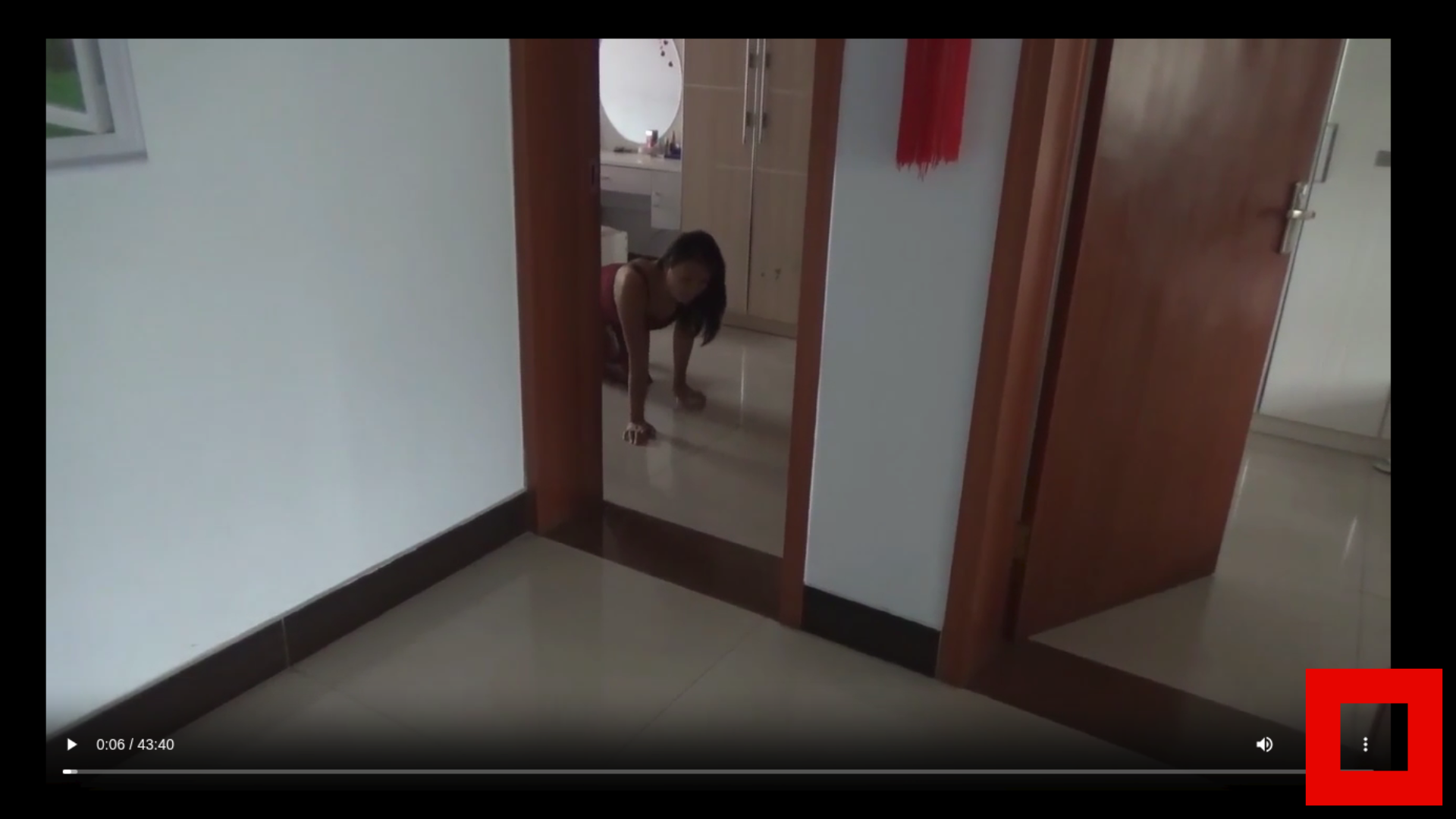
Step 2: Tap the 3-dot menu in the video player
In the screenshot below, the red highlight shows exactly where to click the three-dot menu.
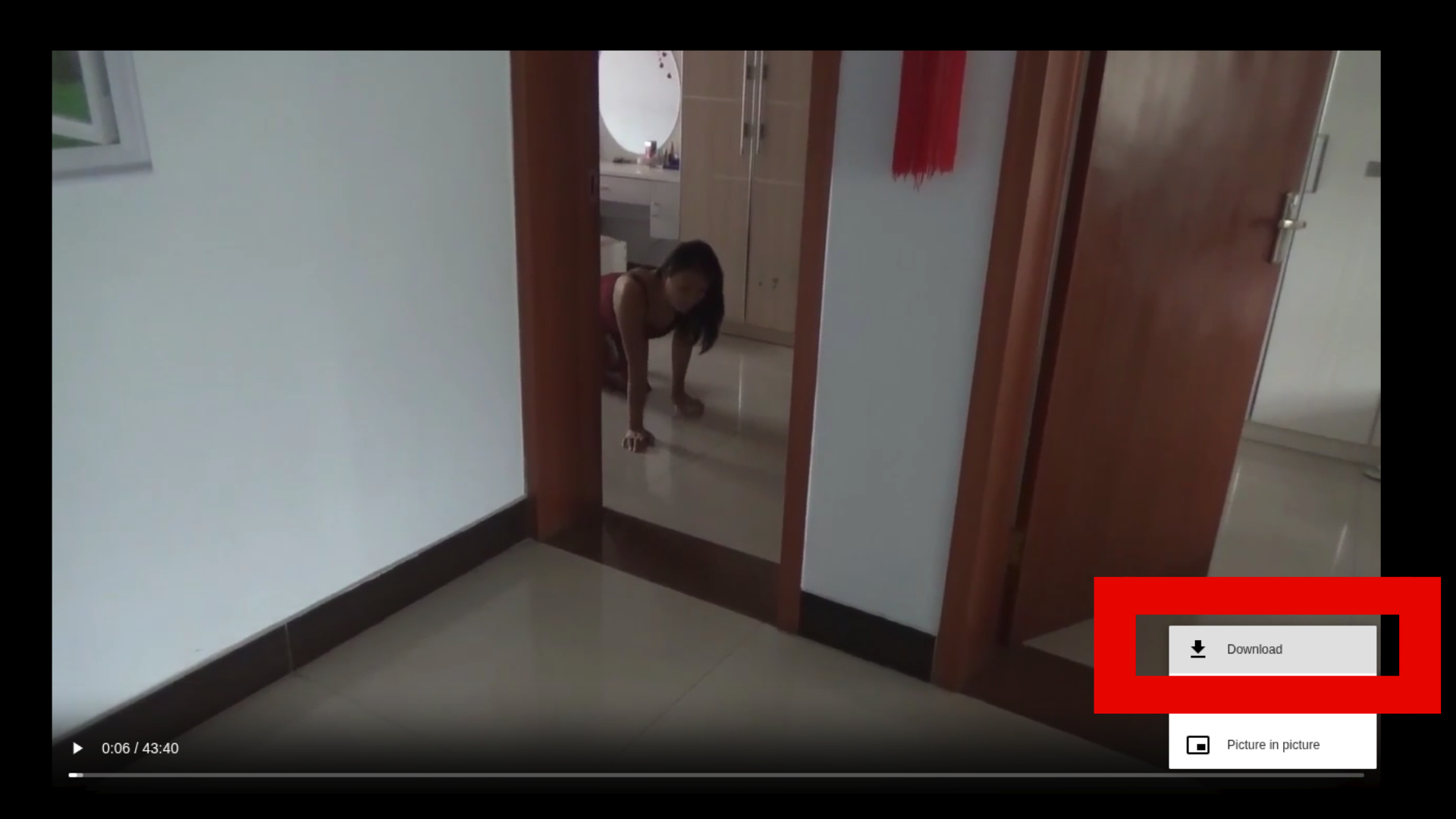
Step 3: Choose “Download” from the menu
After opening the menu, click the download option. The red highlight in this screenshot marks that button.
Important tip
Please make sure you have a stable internet connection before starting a download, so it can complete without interruptions.